Uninstall Multiple Programs at Once: A Guide to IObit Uninstaller’s Batch Feature

Managing software on a Windows PC can become stressful, especially when your system is filled with unnecessary programs, leftover files, toolbars, or apps you no longer use. Uninstalling them one by one takes time, slows your workflow, and often leaves unwanted traces behind. This is where IObit Uninstaller stands out with its powerful Batch Uninstall feature, designed to help users remove multiple programs quickly, efficiently, and without complications. Whether you’re cleaning up a slow PC, preparing a device for new installations, or simply maintaining system hygiene, IObit Uninstaller’s batch feature is one of the simplest ways to get the job done.
What Makes IObit Uninstaller Unique?
IObit Uninstaller is a dedicated program removal tool from IObit built to perform deep and complete uninstallations. Many default uninstallers leave behind residual files, broken shortcuts, and registry entries that pile up over time. These leftovers consume storage space and may cause reduced system performance. The strength of IObit Uninstaller lies in its ability to clean these hidden remnants thoroughly.
But the key highlight of this tool, especially for busy users, is the Batch Uninstall feature. This feature allows you to uninstall multiple programs simultaneously, saving you time and effort. Instead of going through traditional uninstallers one by one, you can select all unwanted apps and remove them in a single action.
Understanding the Batch Uninstall Feature
The Batch Uninstall feature is designed to simplify your workflow. It is especially helpful when you have installed too many apps, downloaded software bundles, or faced a situation where multiple programs came pre-installed on your PC. The feature works by scanning your entire system for installed programs, allowing you to select them together and proceed with the removal process.
The advantage of using this feature is not just convenience, but also accuracy. IObit Uninstaller removes every trace of a program, including registry entries, installation folders, startup items, and hidden files. This ensures your PC remains clean, organized, and optimized.
How to Use Batch Uninstall in IObit Uninstaller
Using the Batch Uninstall feature is straightforward. Here is a clear and simple guide to help you perform the task from start to finish:
Step 1. Launch the Program
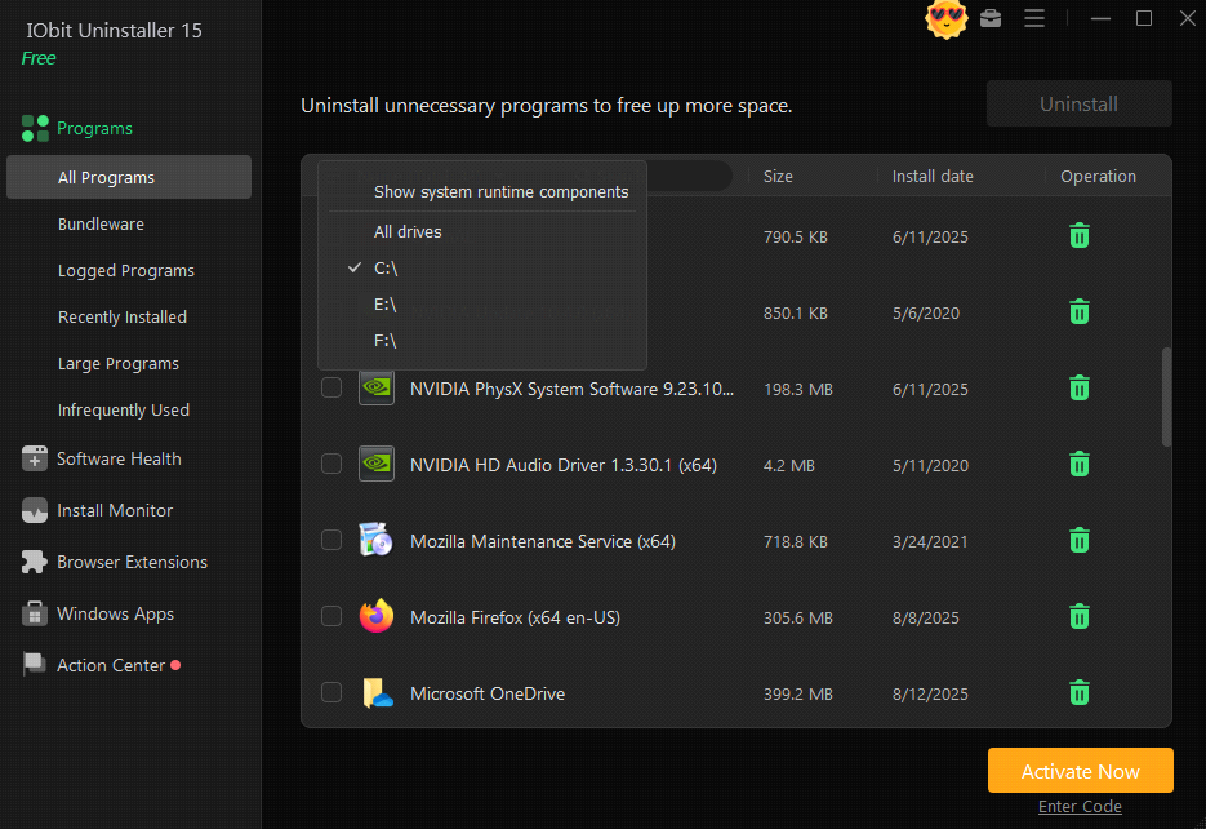
Open IObit Uninstaller on your PC. Once the dashboard appears, you will see different categories of apps such as All Programs, Large Programs, Bundleware, and more.
Step 2. Select the Apps You Want to Remove
Go to the “Programs” or “All Programs” section. Here, you can scroll through your installed applications. Every app will have a checkbox next to it. Select the checkboxes for all the programs you want to uninstall. You can choose two apps, ten apps, or even more — the tool handles it smoothly.
Step 3. Start the Batch Uninstall Process
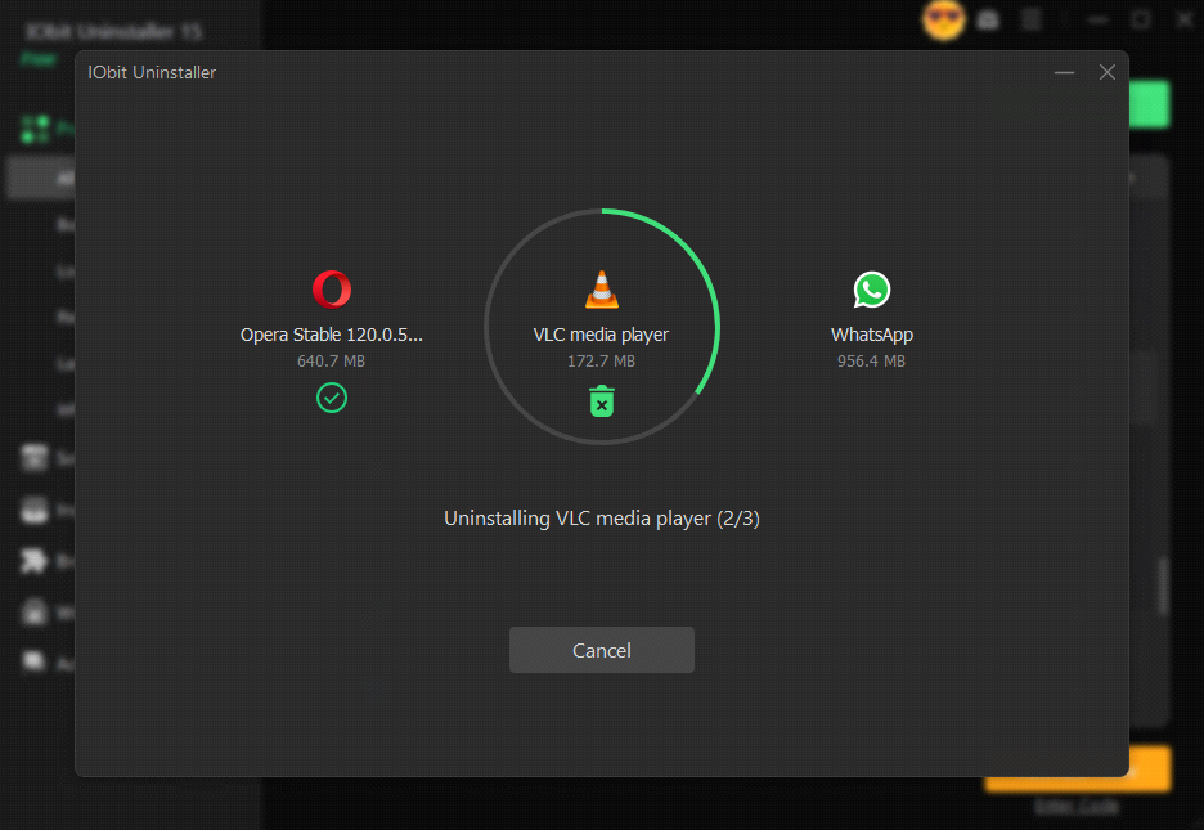
Once you have selected the apps, click the “Uninstall” button. IObit Uninstaller will now begin the removal process. Depending on the number of programs, this may take a few minutes.
Step 4. Remove Leftover Files
After uninstalling the programs, IObit Uninstaller performs a deep scan for leftover items. This is an essential step that ensures your system remains clean. Click “Remove” to delete all detected remnants.
Step 5. Restart if Required
Some uninstallations may require a restart. If prompted, simply restart your PC to complete the cleanup process.
Why Batch Uninstall Saves Time and Boosts Productivity
For users managing several programs—gamers, office workers, students, or professionals—the Batch Uninstall feature is a huge time-saver. It cuts the manual effort involved in running uninstallers individually. Instead of going through repetitive steps multiple times, you handle everything in one flow.
The process also boosts productivity because you free up storage space, eliminate unnecessary background processes, and speed up your computer. A lighter system runs smoother, launches applications faster, and provides a better overall performance experience.
Perfect for Removing Stubborn or Bundleware Apps
Some apps are stubborn and refuse to uninstall completely through the standard Windows uninstaller. Others install additional components without permission, such as toolbars or bundled software. IObit Uninstaller handles all these issues seamlessly.
Its batch feature can remove bundleware, plug-ins, toolbars, and hidden components that often slip past users. This level of cleanup is one of the biggest reasons why many PC users, technicians, and IT professionals prefer using IObit Uninstaller for system maintenance.
Extra Features That Enhance the Cleaning Process

Besides batch uninstalling, the program includes features that make overall system cleanup more effective:
- Force Uninstall: Helps remove programs that are corrupted or cannot be uninstalled normally.
- Software Health: Scans for outdated software, broken shortcuts, and system clutter.
- Browser Cleanup: Helps remove unnecessary extensions from major browsers.
- Install Monitor: Tracks newly installed software and ensures complete removal later.
These features complement the batch uninstalling technique, giving you a deep and reliable cleanup experience.
Final Thoughts
Uninstalling programs one by one is outdated and unnecessarily time-consuming. With the Batch Uninstall feature in IObit Uninstaller, users can complete system cleanup quickly, efficiently, and without leftovers. Whether you’re removing heavy applications, cleaning up unwanted software bundles, or simply optimizing your PC, this tool provides a smooth and complete solution.
By understanding how the batch feature works and using it regularly, you can keep your Windows system organized, faster, and more stable. IObit Uninstaller not only saves time but also enhances system health — making it one of the most valuable tools for anyone who wants a clean and efficient PC.